
Ten Meet Links a Day for Conversations Under Five Minutes
Here is a hypothetical. A 9-person product team relies mainly on Google Meet. A short question like "can you take a look at this page?" means creating a link, waiting for people to join, talking for three minutes and hanging up. The calendar fills up with tiny meetings, and busy people hesitate to interrupt because they can't tell whether the other person is free.
Meet is well suited to meetings scheduled in advance and to conversations with people outside the team. It wasn't designed for "walk over and ask a quick question." This article offers a 2-week checklist for moving only the short conversations inside your team to an online office, without dropping Meet for clients and outside parties.
If the concept is new to you, read What Is an Online Office and How to Choose an Online Office alongside this article.
Before You Start: Decide What Moves and What Stays
| This kind of conversation | Where it lives |
|---|---|
| Quick questions, short work sessions together, a chat among two or three people | Move to the online office |
| Daily stand-up | Try moving it in week 2 |
| Meetings with clients, job candidates and outside parties | Stay on Meet |
| Large meetings with an agenda that need minutes | Stay on Meet (or whatever suits the team) |
Clients stay on Meet because Zyra's feature page does not list a dedicated feature for inviting outside guests, and Zyra's video calls and screen sharing are part of the Pro plan, which the pricing page lists as coming soon. Check the details on the pricing page.
Week 1: Set Up and Try It With a Small Group
Days 1–2: Prepare the space
- Sign up and create a workspace. For the full steps, see Set Up Your Team's First Online Office in 10 Minutes.
- Choose a map template and name the rooms to match what your team uses, such as a common room, a quiet room and a meeting room (the Free plan includes 3 rooms).
- Invite 3–5 members as a trial group.
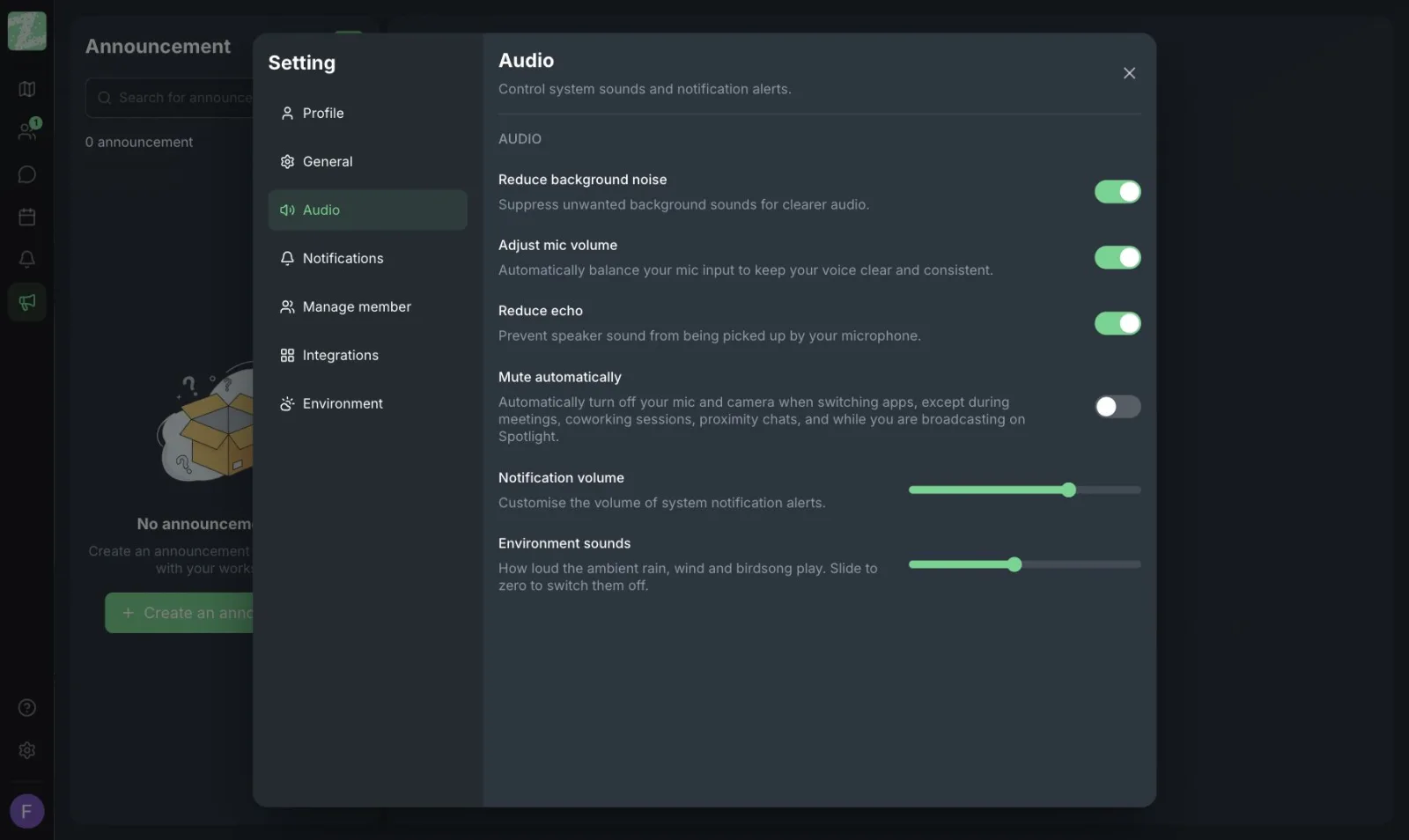
- Have everyone set up their mic and audio on the settings page before real use.
Days 3–5: Agree on a few short rules
- Agree that being close together means available to talk, and that entering a quiet room means asking for focus time. See Etiquette for Chatting in a Virtual Office.
- Agree on the hours when everyone should be in the online office, for example 10:00–15:00.
- Agree on "ask quick questions in the online office first, and schedule a Meet only if it will run longer than 10 minutes."
- Announce in the team's existing chat channel that you will run a two-week trial.
Day 5: Measure a baseline
- Count the small-topic Meet invites that happened this week (from the real calendar). Keep the number as a reference. No special tool is needed.
Week 2: Expand and Move the Stand-Up
Days 6–8: Move the quick questions
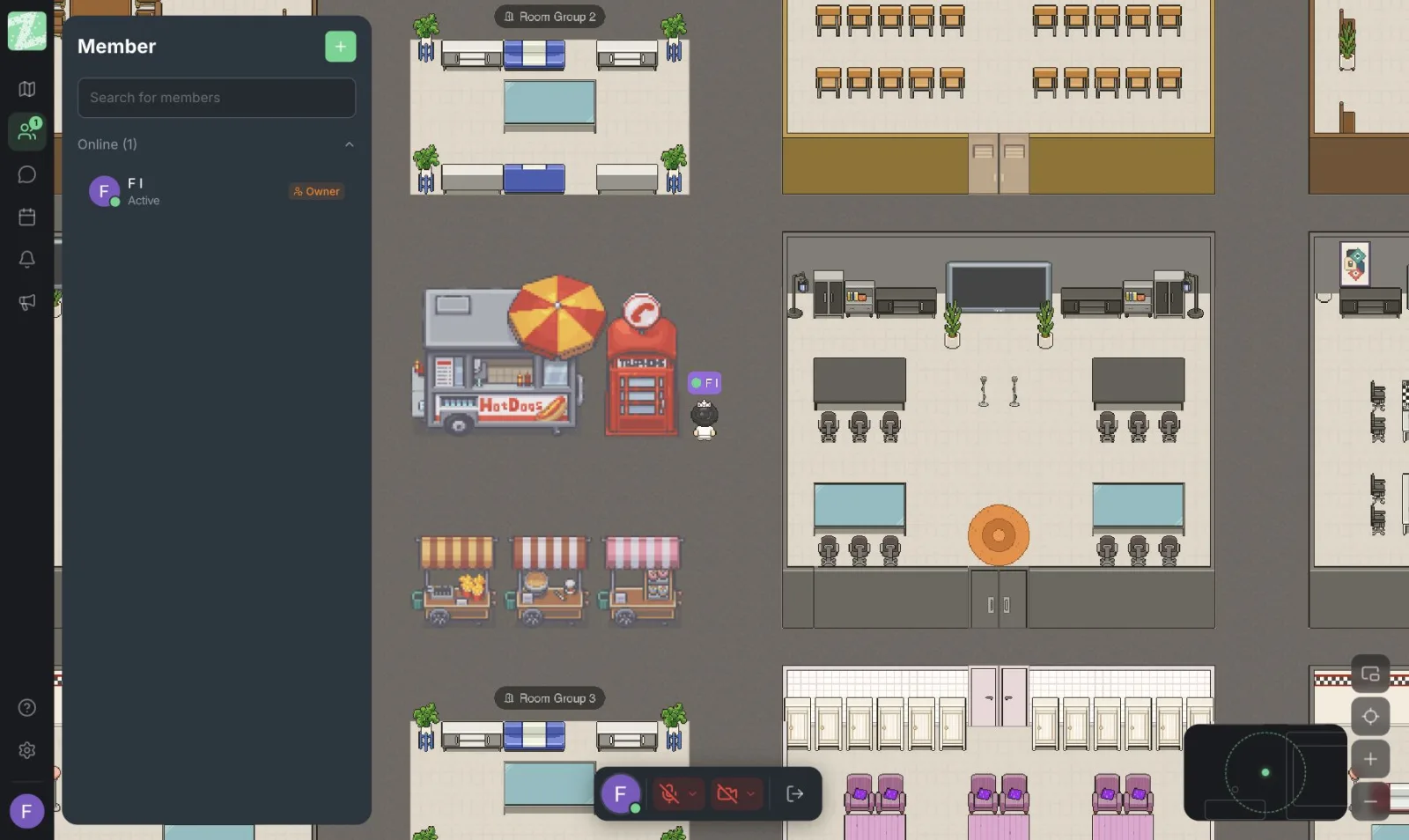
- Ask everyone in the trial group to walk over to a colleague with a short question instead of creating a Meet link.
- If the other person is talking or is in a quiet room, leave a message and wait.
- Keep a list of what gets in the way, such as "couldn't tell who was free" or "audio wasn't clear."
Days 9–10: Try moving the stand-up
- Keep the same time as the existing stand-up, but have everyone walk into the team's meeting room instead of joining Meet.
- Use a three-question format: what I did yesterday, what I'm doing today, and what is blocking me. Limit it to 10–15 minutes.
- If someone doesn't like it, they can switch back to Meet. Don't force it.
Days 11–12: Expand to the whole team
- Invite the remaining members (check that you stay within what your plan supports; the Free plan is up to 25 people).
- Ask members of the trial group to welcome the newcomers on their first day.
Days 13–14: Review
- Count the small-topic Meet invites again and compare with week 1.
- Ask the team three questions: is asking easier, are people being interrupted too much, and is there anything you can't do?
- Decide: keep using it, adjust the rules, or go back to Meet for certain cases only.
What to Watch Out For
- Don't use chat as the main place for conclusions. According to the pricing page, channels and threads are in the Pro plan, which has not launched yet. Record important conclusions in your task tool or team documents, and don't rely on the online office's chat.
- Not everyone is comfortable being visible all the time. Make it clear that the space is not used to track anyone's working time. See How to Track Remote Work Without Micromanaging.
- Don't drop Meet entirely. Use both tools where they fit best. Meetings with an agenda that people will refer back to are still best scheduled in advance. See Running Effective Online Meetings.
Sources and further reading
Frequently Asked Questions
Do we have to stop using Google Meet?
No. This checklist moves only the short daily conversations inside your team. Meetings with clients and people outside the team stay on Meet as before.
Are two weeks really enough?
It is a trial window for a small team, not a guarantee of results. Larger teams may need longer. Use the before-and-after count of small-topic Meet invites to decide, rather than any figure from this article.
Does Zyra connect with Google Calendar or Meet?
The feature and pricing pages we checked do not mention this integration, so we can't confirm it. If you need to know, contact our team.
Can teams with people in several time zones use it?
It works for the hours that overlap, but an online office suits real-time conversation. For work spread across very different time zones, use an asynchronous work approach instead.
What should we do if the team doesn't like it?
Ask why. Often the problem is the rules or the settings, not the tool. If adjusting doesn't help, go back to Meet. There is no commitment on the Free plan.
Start Today With a Small Team
Try it with 3–5 people first. You can open a workspace for free for teams of up to 25 members, and it runs in the browser.
Start using Zyra for free, for teams of up to 25 members
Try Zyra with your team
Free for up to 25 members. It runs in your browser, so there is nothing to install, and there are Android and iOS apps too.