
Learners Have Questions, but Nobody Wants to Raise a Hand in a Meeting Room
Picture this: a tutor teaches a small group over video call every week. At the end of each session they ask, "Does anyone have questions?" and get silence. Yet after class, two or three learners message them privately with the very questions that should have been asked mid-session. The questions didn't disappear. There just wasn't a channel that felt comfortable enough to ask in front of others.
A virtual office where users walk their avatars up to each other and talk by proximity can help with this in some formats, especially office hours and small classes. But it isn't the right tool for every classroom. This article covers both what works and the limits, based on the information on Zyra's website at the time of writing, so you can decide before you commit.
Limits to Know First
Checked against Zyra's pricing page and Features page on October 29, 2026.
- The Free plan supports up to 25 members per workspace. That means one instructor and at most 24 learners. If you count teaching assistants, it drops further.
- No information was found about guest accounts or joining a room without signing up on the published pages. The feature listed is inviting members by link or email, so assume learners must be members of the workspace and count toward the quota. If your plan depends on letting outsiders join once, ask the team first.
- Screen sharing and video calls are in the Pro plan, which the pricing page lists as coming soon. The Free plan therefore suits proximity voice chat and text chat, not teaching that needs slides on screen.
- A maximum of 3 rooms and 2 GB of file storage on the Free plan.
- Don't use chat as the main place for answers. According to the pricing page, channels and threads are in the Pro plan, which has not launched yet. Don't use it as a place to keep answers or course materials. Keep the content somewhere learners can already reopen it, such as your documents or drive.
In short, Zyra suits small rooms focused on conversation and access to the instructor. It is not a replacement for a learning management system (LMS) or a large lecture hall.
Formats That Suit a Virtual Office
1. Instructor Office Hours
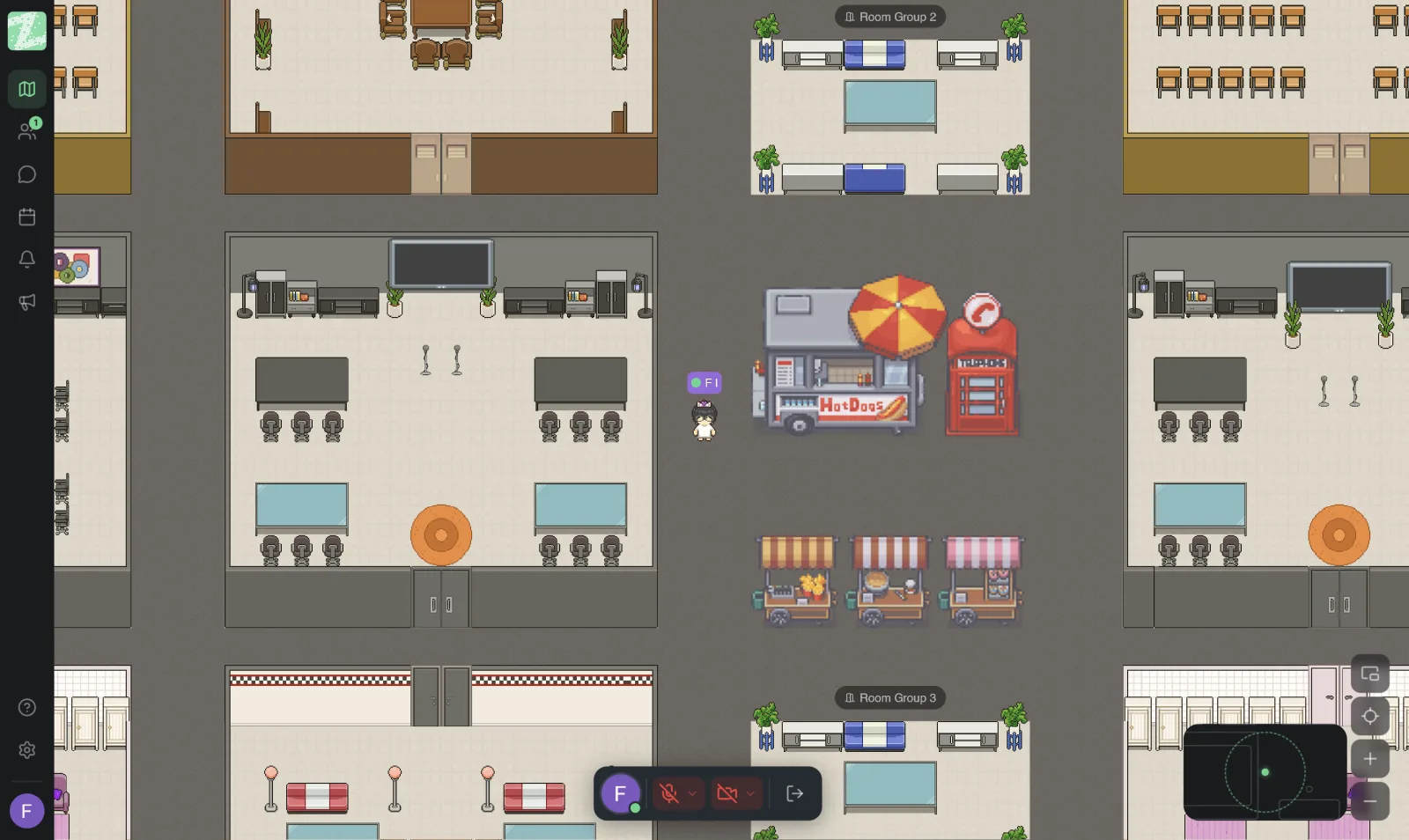
The instructor sets times when they are "in the room," for example Wednesday 7:00 to 8:00 p.m. Learners come in and walk up to the instructor when they have a question. There is no need to book each person in advance or ask for a new link every time.
Advantages compared with opening a single video call:
- Learners who are reluctant to ask in front of their peers can choose a time when no one else is nearby.
- Several learners can talk with the instructor at the same time without queueing in one room, because audio is heard by proximity.
- Learners can see who the instructor is talking with, so they know whether to wait or step in.
2. Small-Group Tutoring
Use one room per group. Three to five learners sit in the same room and talk with the instructor, while other groups are in another room and can't hear them. The Free plan has 3 rooms, so it supports at most two groups plus a shared common room.
3. Small Classes Built Around Conversation
This suits language classes, coaching classes, or workshops where learners mainly talk to each other rather than listen to a lecture. If you need slides or a screen demonstration, run your existing tool alongside, or wait for a plan with screen sharing.
Setup Steps for Instructors
- Create a workspace named after the class. Use a name learners will remember, such as the course name or cohort.
- Choose a map template. Some sample maps have a room with chairs in rows, which works as a classroom, plus smaller rooms for splitting into groups.
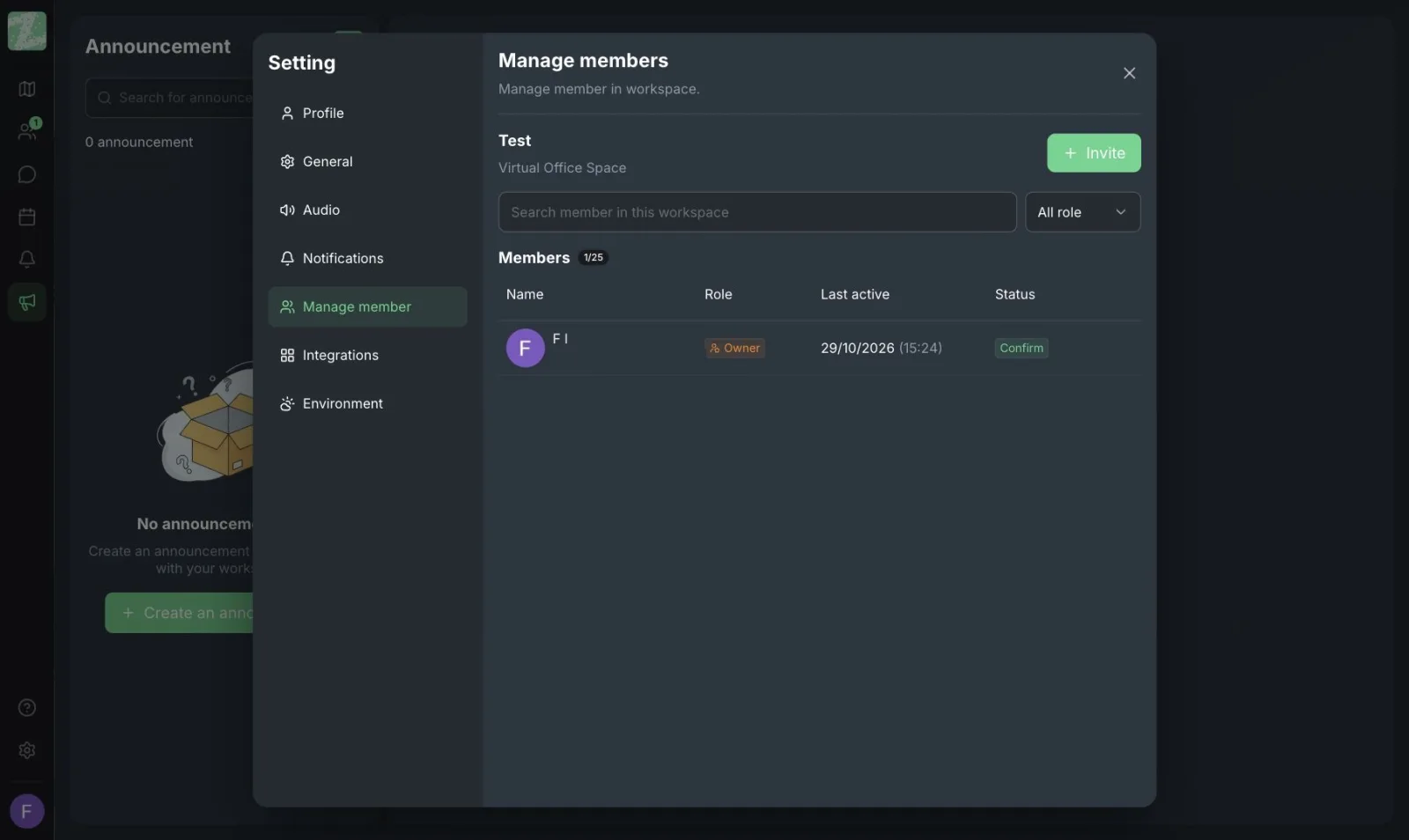
- Invite learners by link or email from the member management page. Check that the total of instructors and learners does not exceed 25.
- Have learners try it before the first day. Check microphones and sound on the welcome page so the first session isn't spent on equipment problems.
- Agree on short ground rules from the start. Who can enter which room and when, and when to use chat. The boundaries for approaching the instructor are similar to those in Etiquette for Talking by Proximity in a Virtual Office.
A Sample Schedule You Can Use
This table is a hypothetical example to adapt to your context, not data from real usage.
| Time | Activity | Where |
|---|---|---|
| 7:00-7:15 p.m. | Instructor summarizes the topic using a document shared in advance | Common room |
| 7:15-7:45 p.m. | Small-group tutoring on the topics learners are unsure about | Group rooms 1 and 2 |
| 7:45-8:00 p.m. | One-on-one office hours; learners can walk in and ask | Instructor stays in the common room |
Questions to Ask Yourself Before Choosing
- Is my class larger than 25 people? If so, Free isn't enough, and the plan with unlimited members is not yet available.
- Do I need to share my screen? If so, you will need another tool alongside.
- Do learners need to join without registering? If so, check with the team first.
- Do I need attendance, grading or record keeping? If so, you will need a separate LMS.
If most of your answers are "no," a virtual office is an option you can try at no cost.
Sources and further reading
Frequently Asked Questions
Can I teach a large class of 30 to 50 people?
Not recommended. According to the pricing page, the Free plan supports up to 25 members. The Pro plan, which is listed with unlimited members, is still shown as coming soon, and the published pages do not state a tested capacity for large classes.
Do learners need to create an account?
The published pages describe inviting members by link or email but do not list a guest feature that requires no sign-up. Assume an account is needed, and ask the team if this is an important condition for you.
Can I record the class so learners can watch it later?
The Features and pricing pages do not mention video or audio recording, so don't plan around this feature. Use a separate recording tool, and tell learners clearly before you record.
How is it different from opening a Zoom or Meet room?
In an ordinary video call everyone hears everyone and people speak one at a time. In a virtual office, learners walk up and talk by proximity. It suits informal Q&A but not lecturing to a large audience all at once. Read more in the article on Online Training and Workshops.
Can I use it with child learners?
This article has not reviewed the safety and data-protection issues for learners who are minors. If you teach children, review the provider's privacy policy and obtain parental consent as appropriate before using it.
Start With a Small Room
Try a short office-hours session with a small group of learners for a week or two, and see whether learners ask more questions. The Free plan needs no credit card and runs in the browser with no software to install.
Start using Zyra for free with a team of up to 25
Try Zyra with your team
Free for up to 25 members. It runs in your browser, so there is nothing to install, and there are Android and iOS apps too.