A New Tool the Team Never Opens, Because Nobody Knows Where to Start
A hypothetical: a team lead reads an article about online offices all the way through, agrees with every point, and leaves the tab open for three days without signing up. The reason isn't price. It's the feeling that "setup will take all day, and will the team even use it?" This worry is common with every kind of tool.
This article walks you through setup from zero to the point where your team is in the space together. Every step was checked against the app's real screens as of November 2026, and options that depend on the plan are listed on the pricing page. If you aren't sure the idea suits your team, read What Is an Online Office first.
Before You Start: Prepare Three Things
- 2-3 people to try it. You don't need to invite the whole company. Pick teammates who already talk often.
- One set of headphones per person. Proximity audio works much better when there's no echo.
- An up-to-date browser. Zyra runs in the browser, so there's nothing to install.
Step 1: Create a Workspace
Sign in at `app.zyra-world.com`. You will see the list of your workspaces (the app titles this page Space builder). Click Create workspace in the top right. The app opens a window where you choose a map in the next step.
The Free plan suits teams of up to 25 members and includes 1 workspace with 3 rooms and 2 GB of storage, with no credit card required. Check the latest details on the pricing page, because the Pro and Enterprise plans are marked as coming soon.
Step 2: Choose an Office Map
The Create workspace window shows map templates as cards. Each card gives a name, a capacity (for example 50 people or 100 people) and a type (for example Nature or Office). A Capacity filter on the left runs from 10 to 500 people. The Continue button stays grey until you pick a template.
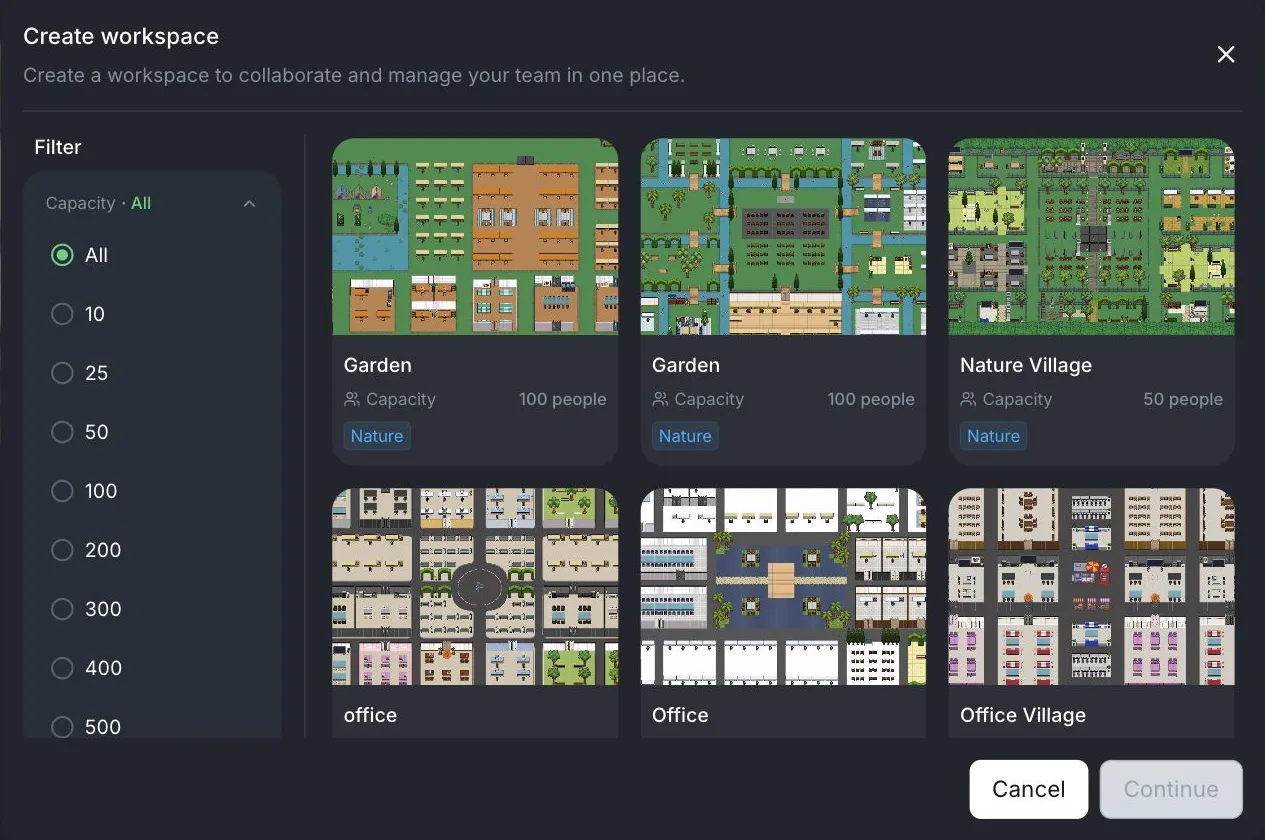
Start with a map that is not much bigger than your team. A small team does not need a big map: too many rooms scatter everyone and make the office feel empty. According to the pricing page, the Free plan has 3 map templates (Pro lists 50 or more). The list you see in the app may differ by plan and account.
An example of how a small team might use its rooms:
- A shared room: where everyone works and small talk happens.
- A meeting room: for conversations you do not want to disturb others with.
- A quiet room or private zone: for focus, or for sensitive conversations.
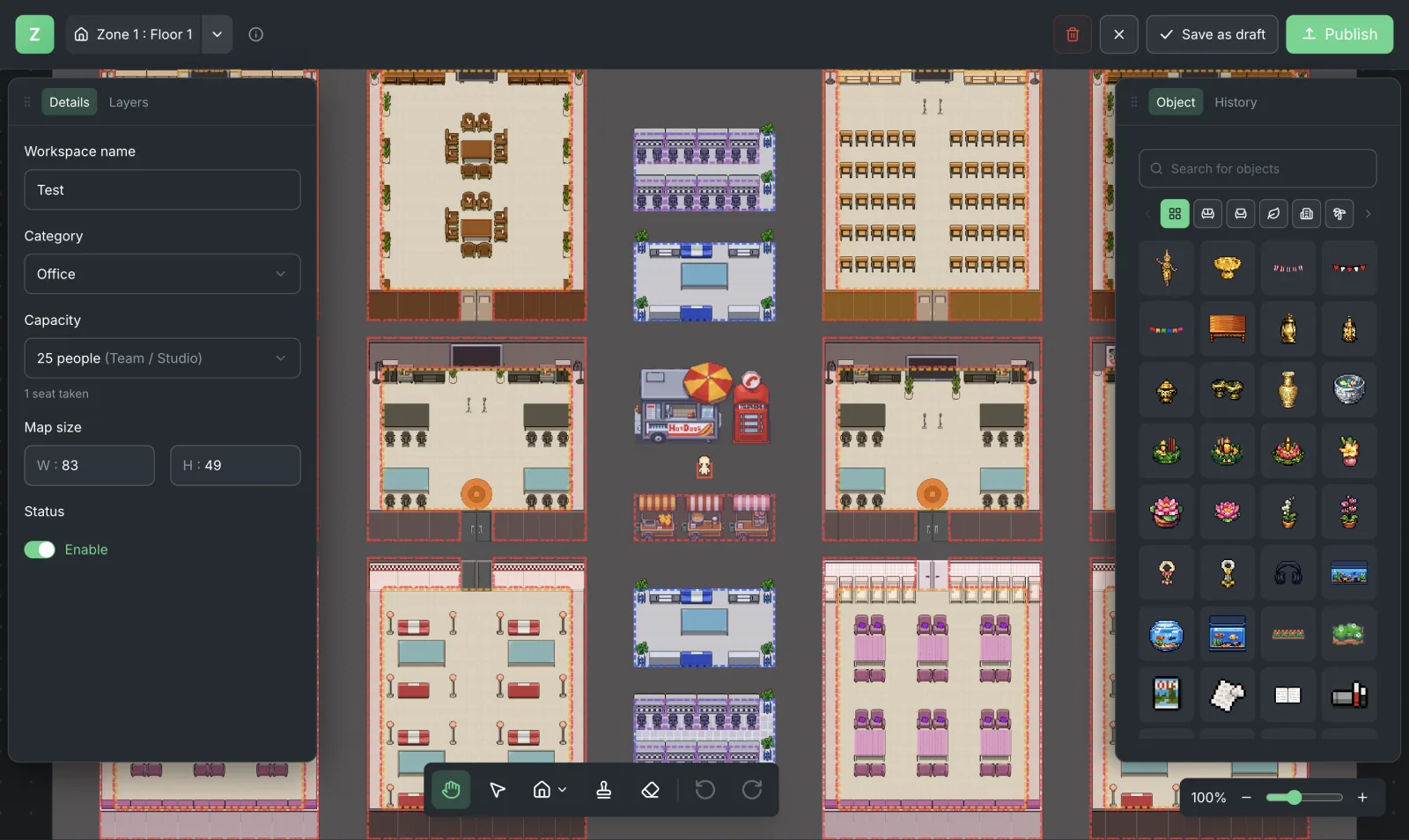
The menu on each workspace (the three-dot button on its card) offers Enter workspace, Copy workspace, Workspace editor and Manage workspace. Use Workspace editor when you want to change the map later. Which customization options each plan includes is listed on the pricing page.
Step 3: Check Your Camera, Mic and Avatar in the Lobby
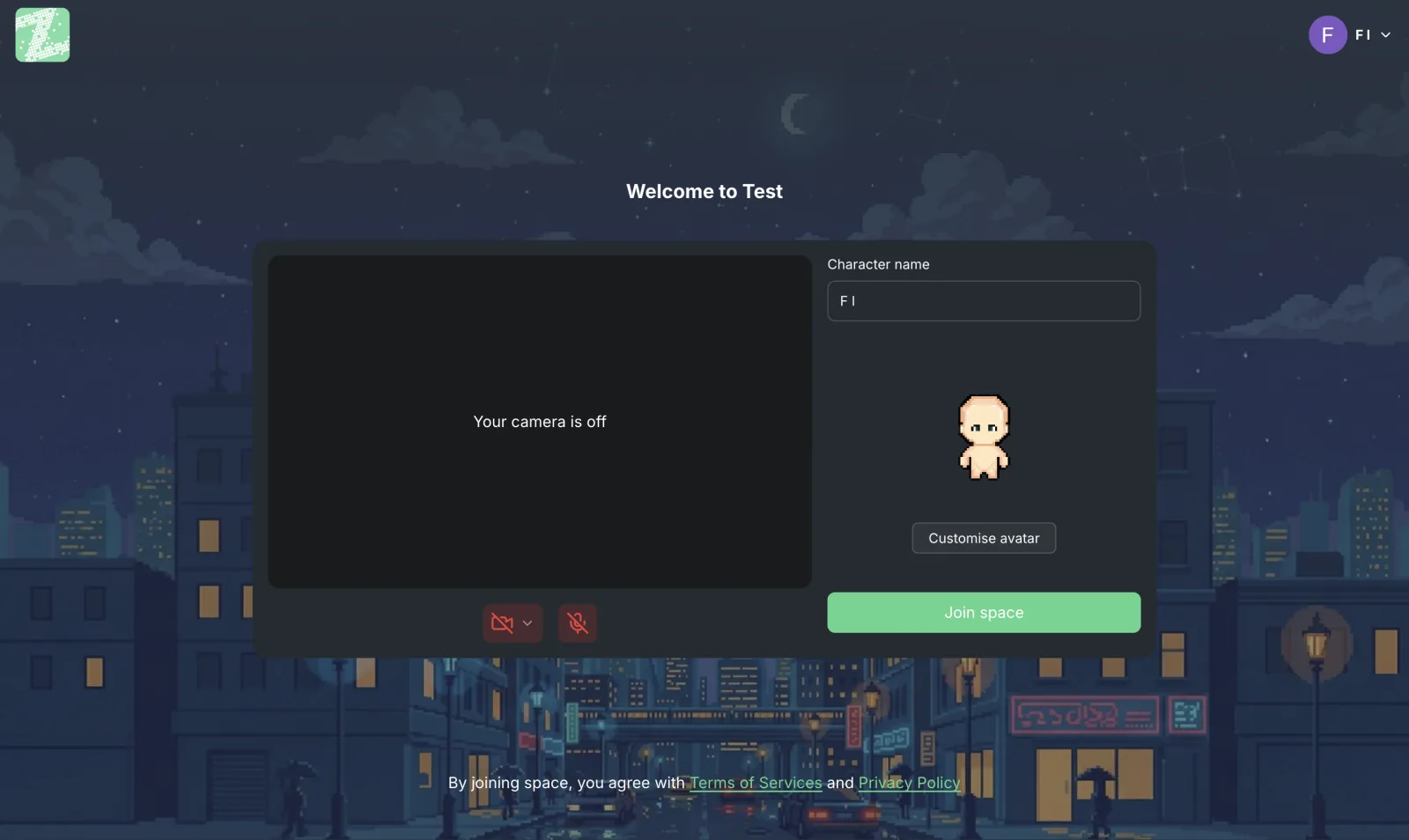
Before you enter a space, Zyra shows a welcome page with a camera preview, camera and microphone toggles, a character name field, and an avatar customization button. Use this page to get everything right before you press Join space.
- Set a name your teammates recognize (a nickname is fine), so people know who is who at a glance.
- Test your mic first. If the sound is quiet or noisy, adjust it in the audio settings.
- It's fine to start with the camera off. You don't have to keep your camera on all the time. This is something to agree on as a team from the start (see more in Etiquette for Talking in a Virtual Office).
Step 4: Invite Your Teammates
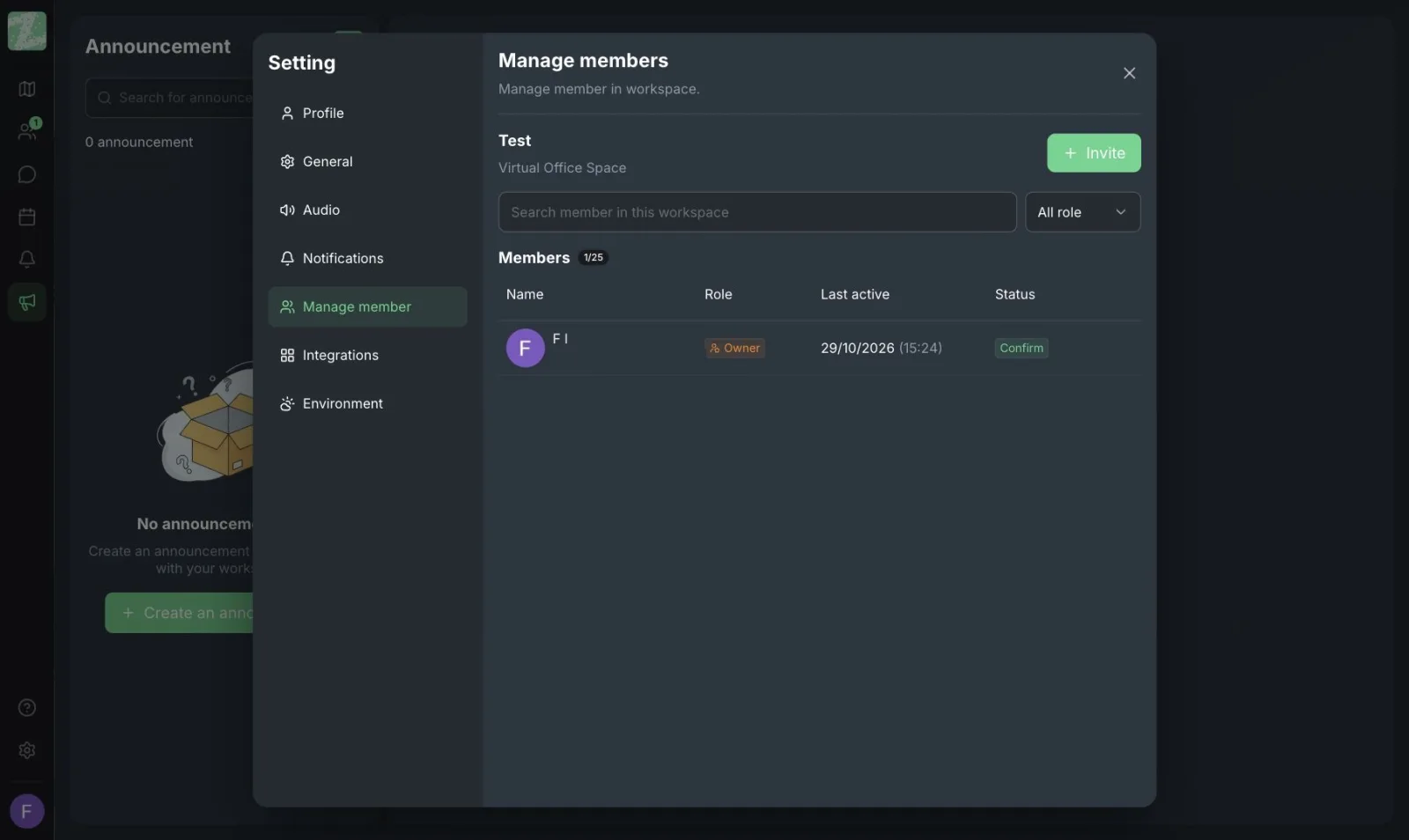
Open the workspace menu, choose Manage workspace, then Manage member. You will see the member list with roles (for example Owner), last active date and status, plus a search box and a role filter. Click Invite to add people.
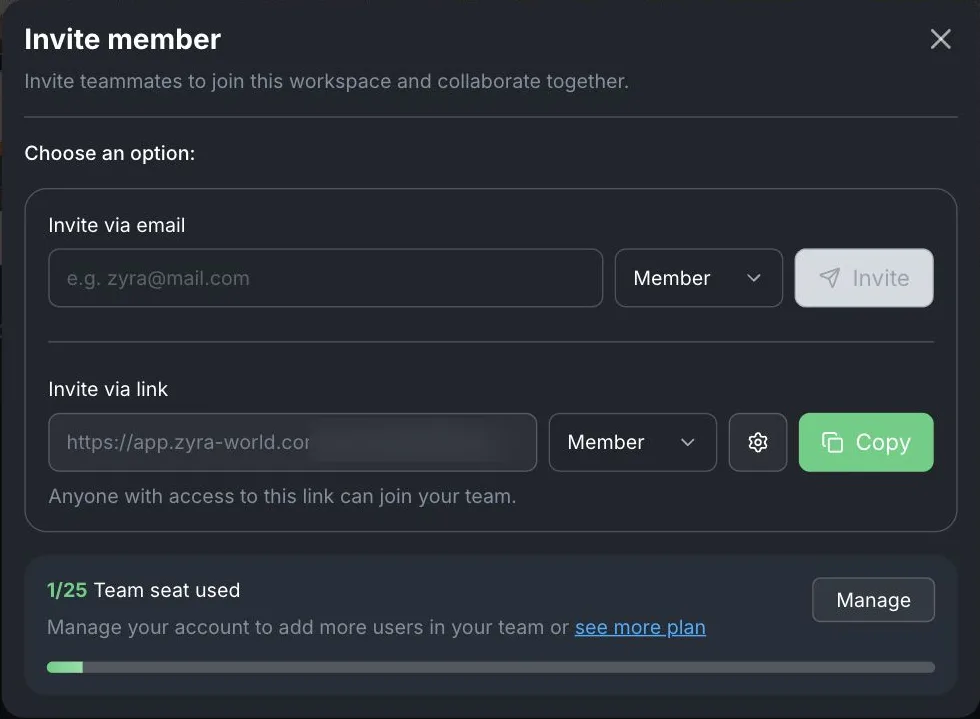
The Invite member window offers two ways:
- Invite via email: enter an email, choose a role (the default is Member) and click Invite.
- Invite via link: copy the link with the Copy button and choose the role for people who join through it. A settings button sits next to it. The app notes "Anyone with access to this link can join your team", so send the link only to the people you mean to invite.
The same window shows how many seats are used (for example 1/25 on Free), with a Manage button and a link to see plans.
Tips:
- Invite only your 2–3 testers first, then widen once the team is comfortable.
- Send an invitation that gives a short reason, for example "Let's try it for 2 weeks instead of booking a Meet for small questions", not "everyone must join".
- Which role and permission options each plan includes is listed on the pricing page.
Step 5: Agree on 3 Rules on Day One
Finishing the software setup doesn't mean the team will use it. Agree on a few things briefly in your chat room or daily meeting.
- What time people come into the office. For example, enter when work starts and leave when work ends, so everyone knows who is around and when.
- Small things in the office, big things in a scheduled meeting. This cuts the 15-minute video call booked to ask a 30-second question.
- People who need to focus go to the quiet room, and the team respects that signal.
Try It for 2 Weeks, Then Measure Simply
At the end of the second week, ask the team 3 questions.
- What is something you used to need a meeting for that you can now answer in the office?
- Do newcomers, or people who tend to stay quiet, find it easier to approach others?
- Were there times when the office disturbed your concentration?
If the answer to the first question is "yes," and the third can be handled with the quiet room, the trial has worked. For a more systematic way to choose a tool, read How to Choose an Online Office for Thai Teams.
Sources and further reading
Frequently Asked Questions
Do I need to install anything?
No. Zyra runs in the browser.
How long does first-time setup take?
Creating a workspace, choosing a map and sending invitations are a short run of steps for a small team. We have not timed them, so treat the 10 minutes in the title as a goal rather than a measurement. Agreeing on team rules takes separate time.
How many people can use Free?
Up to 25 people per workspace, with no credit card needed.
If the team doesn't like it, is it easy to stop?
Yes, because you try it with 2-3 people first without changing your existing tools. If it isn't a fit, you can stop using it without affecting regular work.
Which map size should we choose?
Choose by the number of people who will be in at the same time. The Capacity filter in the Create workspace window helps. A small team starting a trial does not need a big map.
Start With a Small Team
Open your team's workspace for free for teams of up to 25. It runs in the browser.
Start Zyra free for teams of up to 25
Try Zyra with your team
Free for up to 25 members. It runs in your browser, so there is nothing to install, and there are Android and iOS apps too.