
Short answer: proximity chat for event and community teams lets attendees walk their avatars between small conversations on a shared map, the way people move between groups at a real meetup. Instead of one big video call where only a few people speak, many small groups talk at once. It works best for meetups, networking rounds and community hangouts of up to a few dozen people.
- Proximity chat for event and community teams turns one silent call into many small conversations.
- Plan zones: a welcome area, topic corners and a quiet room.
- Give people roles: a host, a greeter and someone watching the chat.
- Write simple rules for behaviour and how to leave a group.
Disclosure: this article is written by the Zyra World team, who build an online office with proximity chat, so read it with that in mind.
Why proximity chat matters for event and community teams
Online meetups often look the same: one speaker, many muted squares, and a chat that scrolls past. Newcomers rarely say anything, and people leave after the talk because there is no easy way to meet anyone.
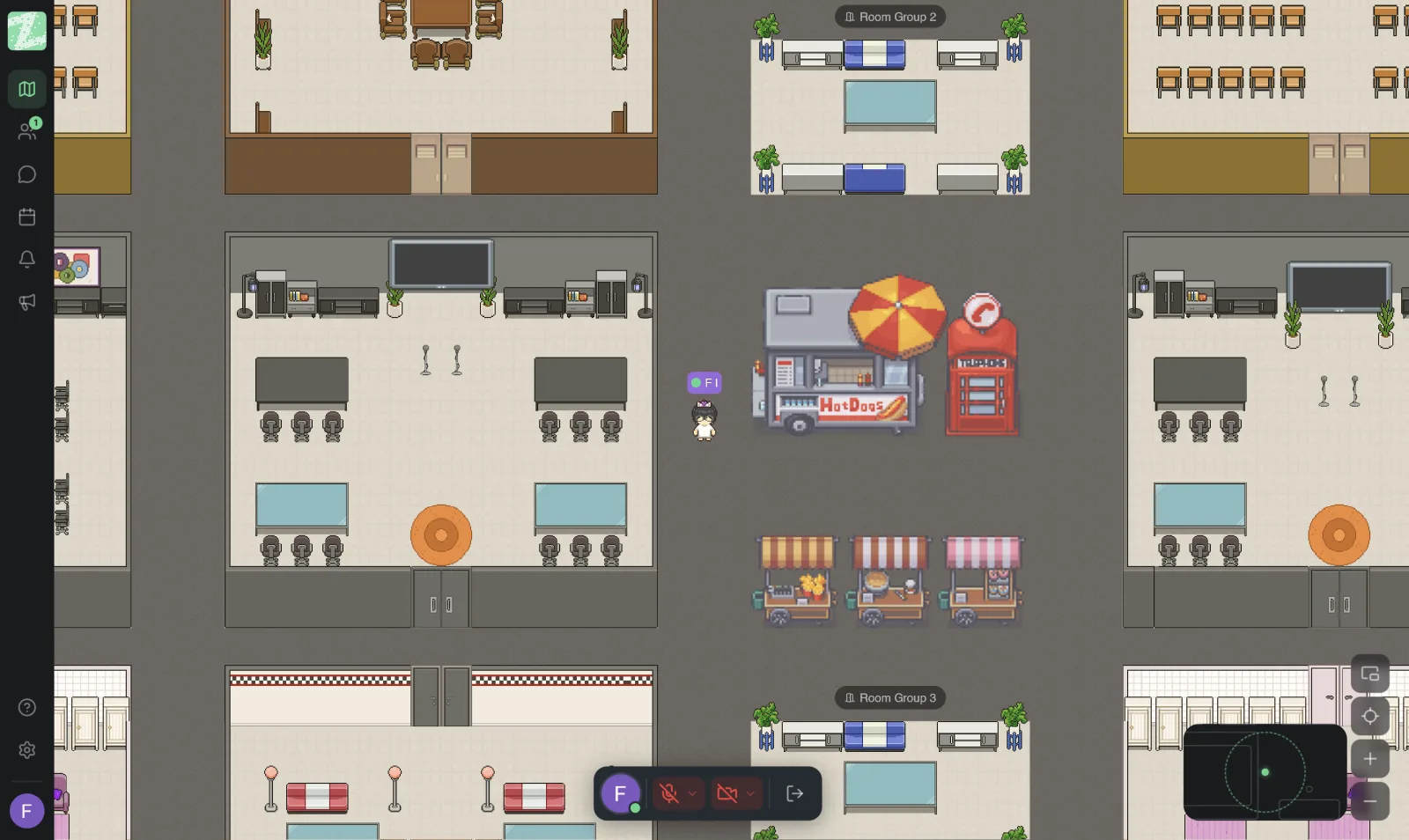
Proximity chat changes the shape of the event. After a short talk, attendees walk over to a topic corner and join a small group. They can hear only the people near them, so it feels natural to speak. In other words, the event behaves more like a real room.
How to set up proximity chat for your community
1. Plan zones on the map
- Welcome area: where new people arrive and a greeter says hello.
- Stage or talk area: for the short opening talk.
- Topic corners: 3-5 spots labelled with a topic, so people know where to go.
- Quiet room: for a private chat or a break.
Our guide to designing an online office map has more layout ideas.
2. Give people roles
- Host: opens the event, keeps time and moves people to the next part.
- Greeter: stands at the welcome area and brings newcomers into a group.
- Chat watcher: answers questions in the chat and helps anyone with audio problems.
3. Write simple rules
Post three or four rules before the event: be kind, keep groups open, it is fine to walk away, and how to report a problem. For more on safety, see our guide to community meetups in a virtual space.
4. Run a short test with the team
Before the event, walk the map with two or three organisers. Check that audio connects in each corner, that the private room is private, and that screen sharing works for the talk.
Compare formats for your event
| Format | Best for | Limitation |
|---|---|---|
| Proximity chat space | Meetups, networking, community hangouts | Needs a map plan and a host |
| Video call with break-out rooms | Structured workshops | Moving between groups is manual |
| Webinar | Large talks with Q&A | Little interaction between attendees |
| Text chat community | Ongoing discussion between events | No live conversation |
Many communities combine them: a text community between events, and a proximity chat space for the live meetup.
Common mistakes event and community teams make
Inviting too many people for the space
Small groups are the point. If the room is crowded, conversations overlap. For a large audience, use a webinar for the talk and a proximity space for smaller follow-up sessions.
No greeter
New people arrive, see groups talking and leave. A greeter who brings them into a group changes the whole event.
Topic corners without labels
People do not know where to go. Label each corner with a clear topic.
Making it hard to leave
Tell people it is fine to walk away from a group. Easy exits make people more willing to join.
Sources and further reading
- Zyra World features and plans (checked November 2026)
- MDN: Web Audio API spatialization basics, for how browsers can place sound in space (checked November 2026)
Frequently asked questions
What is proximity chat for event and community teams?
It is a shared map where attendees appear as avatars and hear only the people near them, so many small conversations can happen at once, like groups at a real meetup.
How many people can join an event?
It depends on the product and plan. Zyra World's Free plan covers up to 25 members, which suits a small meetup or a community core team. Check the Plan page for larger groups.
Do attendees need to install anything?
Not for Zyra World: it runs in the browser, with iOS, Android and Mac apps too.
How do we keep the event safe?
Post simple rules, have a host and a chat watcher, and use a private room for any sensitive conversation. Remove anyone who breaks the rules.
Can we still give a talk?
Yes. Use a stage area and screen sharing for a short opening talk, then let people walk to topic corners.
One last thing
The success measure for a community event is simple: did people talk to someone new? Design the map, roles and rules around that one moment.
Keep Reading
- Running a Community or Interest-Group Meetup in a Virtual Space: Rituals, Roles and Safety
- Running Online Events and Workshops on a Map: Booths, Rooms and Hosts
- How Does Proximity Voice Chat Work?
- Online Co-Working Rooms for Freelancers: How to Work Alongside Others and Get Real Work Done
Try Zyra With Your Team
Try Zyra free for groups of up to 25 members. It runs in the browser with nothing to install, so you can test your next meetup map this week.
Start using Zyra free for groups of up to 25 members
Try Zyra with your team
Free for up to 25 members. It runs in your browser, so there is nothing to install, and there are Android and iOS apps too.