
Short answer: virtual office software for academic teams is a shared online space where lecturers, students, research groups and tutors can meet, ask questions and work side by side without booking a call each time. It works best for office hours, supervision check-ins and study groups. Keep grades, research data and official records in your institution's approved systems.
- Use it for live, informal contact: office hours, lab check-ins, study groups.
- Do not make constant presence a rule; protect time for focused work.
- Keep sensitive data and assessments in approved systems, not in an open space.
- Start with one workflow and a two-week pilot.
Disclosure: this article is written by the Zyra World team, who build an online office, so read it with that in mind.
Why virtual office software matters for academic teams
Remote and hybrid teaching made formal sessions easy and informal contact hard. A student who would knock on a door for a two-minute question now has to send an email or book a slot. Research groups spread across campuses lose the quick corridor chat that keeps a project moving.
A virtual office brings back that "door is open" feeling. Students see that a lecturer is in the office and walk over. A research group shares one space and talks when they need to. However, it only helps if the team agrees how it should be used.
How to introduce a virtual office for your academic team
1. Pick one academic workflow to improve
Start small. Good first choices are weekly office hours, a lab group's daily check-in, or a study group before exams. Write down what is hard today, for example "students rarely ask questions during office hours".
2. Set participation rules first
Decide when the space is open, who can join, and how people show they are busy. Make it clear that being offline is fine outside those hours.
3. Match features to real tasks
- Proximity audio: students walk up one by one or in small groups, like visiting an office.
- Rooms: a private room for one-to-one supervision.
- Screen sharing: walk through a draft, slides or code together.
- Chat: leave a link or a short note after a conversation.
4. Separate open spaces from private ones
Use open areas for general questions and study groups. Use a private room, or your institution's approved meeting tool, for supervision that involves personal or sensitive matters.
5. Check accessibility and institutional rules
Check that students can join from the devices they have, that captions or written alternatives exist for people who need them, and that your institution's data rules allow the tool for the planned use.
6. Run a bounded pilot and decide what to keep
Run it for two weeks, then ask students and staff what got easier and what did not. Keep it only for the workflows where it clearly helped.
Compare your options
| Option | Best for | Limitation |
|---|---|---|
| Virtual office (e.g. Zyra World) | Office hours, study groups, research group check-ins | Needs agreed rules on presence and privacy |
| Video meeting tool | Scheduled lectures and formal supervision | Every question needs a link and a time |
| Learning management system | Course material, assignments, grades | Not built for live, informal contact |
| Chat tool | Written questions and announcements | Hard to talk through a problem live |
Most teams use a virtual office *alongside* these tools, not instead of them.
Common mistakes academic teams make
Treating presence as evidence of progress
An avatar in the space shows someone is online, not that research or study is moving forward. Measure outcomes, such as questions answered or drafts reviewed.
Discussing sensitive matters in an open area
Open areas let others walk closer. Move personal or confidential discussions to a private room or an approved tool.
Requiring live attendance for essential information
Students in other time zones or with jobs may miss live sessions. Post essential information in writing as well.
Inviting everyone before defining the workflow
A large, empty space with no rules confuses people. Start with one group and one purpose.
Sources and further reading
- Zyra World plans and Free plan limits (checked November 2026)
- W3C Web Content Accessibility Guidelines (WCAG) overview, for accessibility checks (checked November 2026)
Frequently asked questions
What is virtual office software for academic teams?
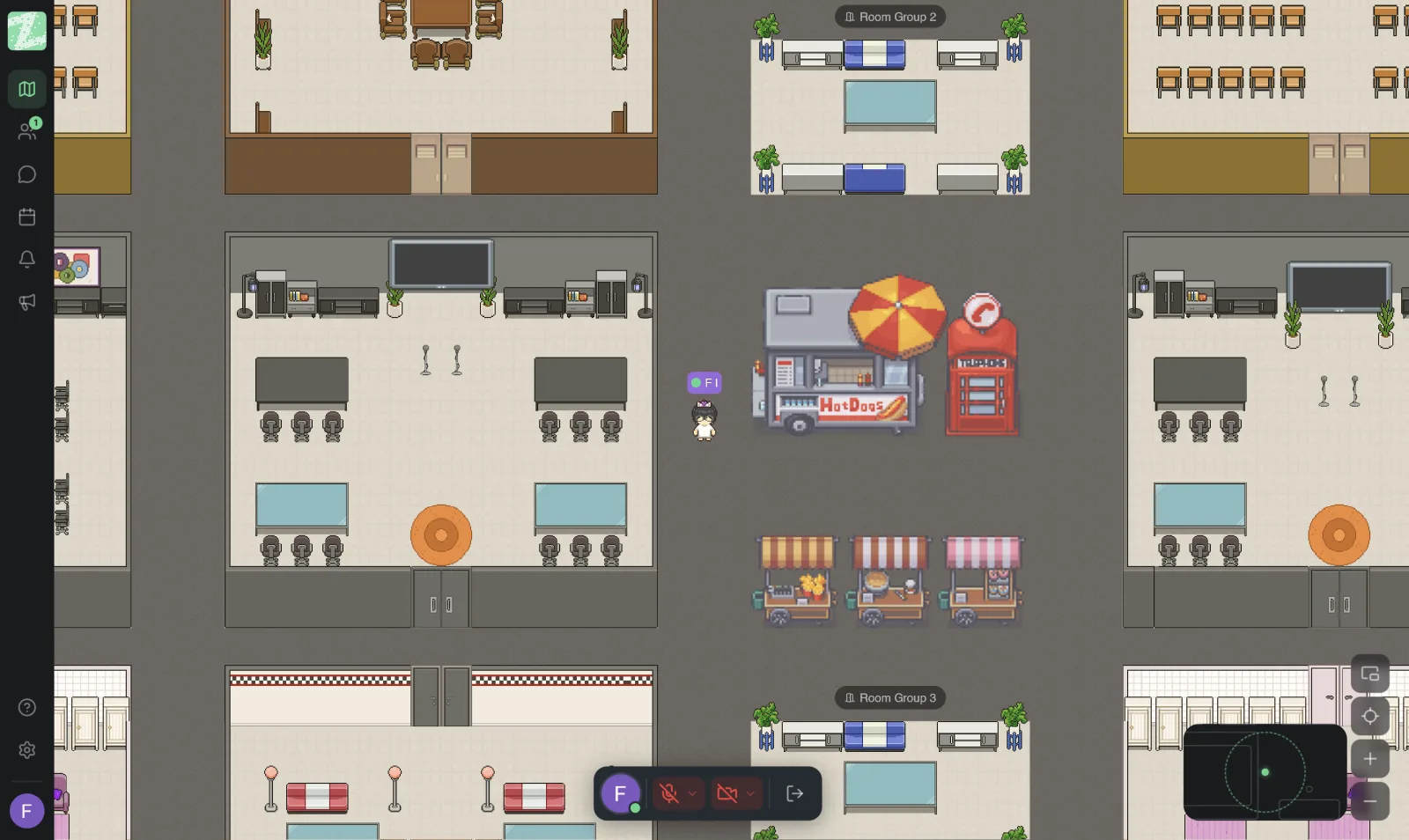
It is a shared online space where staff and students appear as avatars, walk up to each other to talk, and use rooms and screen sharing for supervision or study groups.
Can a virtual office replace our learning management system?
No. Keep courses, assignments and grades in your learning management system. Use the virtual office for live, informal contact.
Is it suitable for one-to-one supervision?
Yes, in a private room, as long as your institution's rules allow the tool for that purpose. Sensitive matters may still belong in an approved meeting tool.
How many students can use it?
Zyra World's Free plan covers groups of up to 25 members, which suits a tutorial group, a lab or a study group. Check the Plan page for larger groups.
Do students need to install anything?
Not for Zyra World: it runs in the browser, with iOS, Android and Mac apps as options.
One last thing
The goal is not to keep everyone online. It is to make asking a question as easy as knocking on an open door. Design your pilot around that one moment.
Keep Reading
- Online Classrooms and Office Hours in a Virtual Office: How Far It Works and How to Do It
- How to Run Online Training and Workshops People Actually Take Part In (Not Just Listen To)
- How Does Proximity Voice Chat Work?
- Is a Virtual Office Worth It for Remote Teams?
Try Zyra With Your Team
Try Zyra free for groups of up to 25 members. It runs in the browser with nothing to install, so you can open your first virtual office hours this week.
Start using Zyra free for groups of up to 25 members
Try Zyra with your team
Free for up to 25 members. It runs in your browser, so there is nothing to install, and there are Android and iOS apps too.