
The most common first-week problem in a virtual office: you walk up to a teammate and they cannot hear you, or you hear your own voice coming back. It is rarely the platform itself. It is usually a browser permission, the wrong device selected, or an audio option that has not been set. This guide goes through the causes one at a time, from the most common to the least.
Four quick checks
- Use a current browser and open your workspace at `app.zyra-world.com`.
- The browser is allowed to use your microphone and camera.
- The right device is selected, not a microphone from something else that is still plugged in.
- No other app is holding the microphone or camera.
If all four are fine and it is still not working, continue with the symptom below.
Nobody can hear me
1. Look at the control bar first
The bar at the bottom of the screen has a microphone button and a camera button. A line through the icon means it is off. Click it to turn it on again. It sounds too simple, but it is the most common cause.
2. Allow the browser to use the microphone
Click the icon next to the address bar (a padlock or a settings icon), find Microphone, choose Allow, and reload the page. If you chose Block once, the browser will not ask again, so you have to change it here.
3. Allow it in the operating system too
Some computers block access at system level, so the browser cannot reach the microphone even when the site is allowed. On macOS, open System Settings, Privacy & Security, Microphone. On Windows, open Settings, Privacy & security, Microphone. Make sure your browser is switched on.
4. Pick the right device
If you have a headset, a webcam and a monitor with a built-in microphone connected at the same time, the system may pick the wrong one. Unplug what you are not using, or change the default input in your system sound settings.
5. Check "Mute automatically"
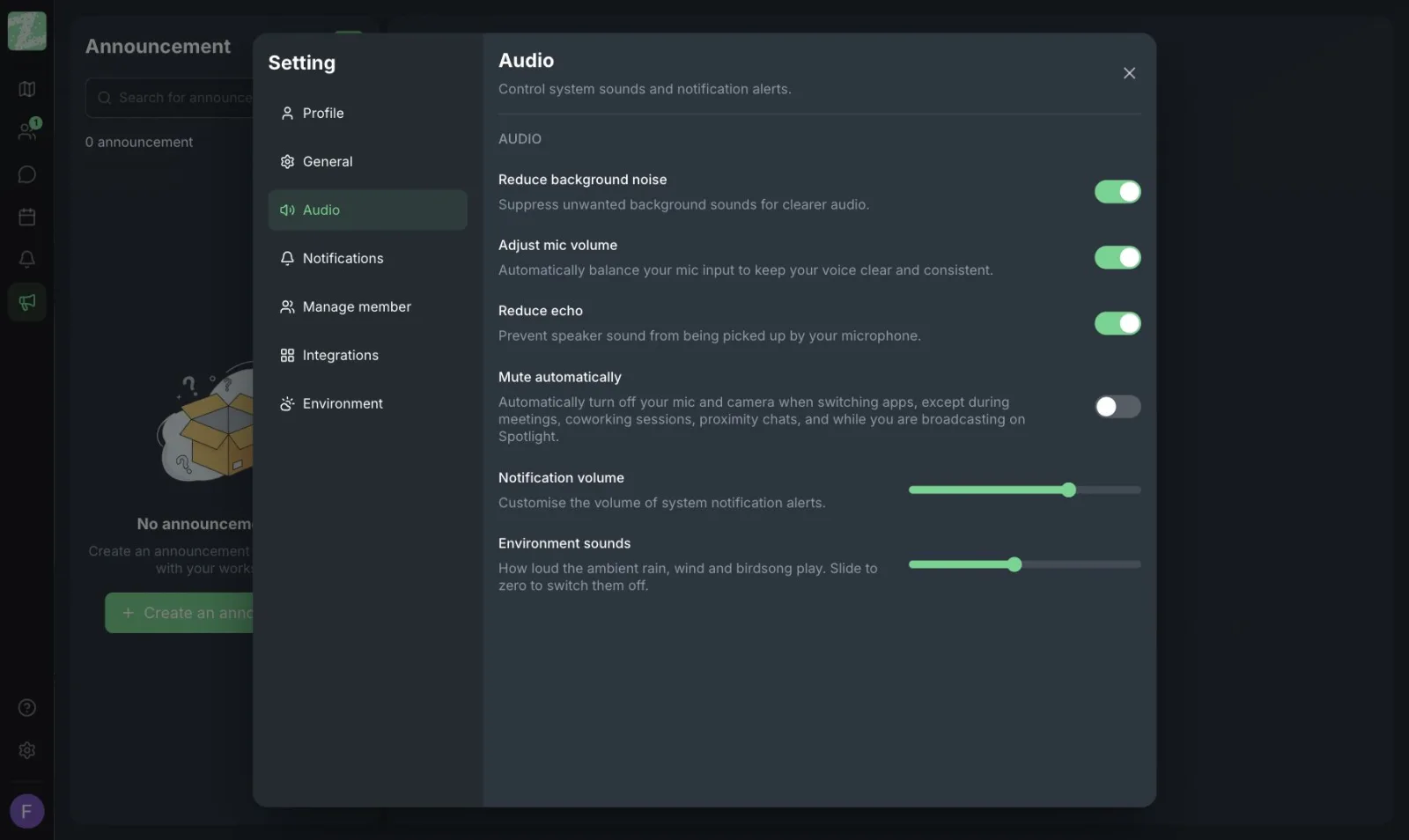
Zyra's audio settings include an option that turns off your mic and camera when you switch to another app (except during meetings, coworking sessions, proximity chats and while you are broadcasting). If your mic disappears after you switch apps, check whether it is on. In the screenshot below it is switched off.
Echo or your own voice coming back
- Always wear headphones. Speakers let the other person's voice into your microphone, which sends it back as an echo.
- Turn on "Reduce echo" in the audio settings. It prevents speaker sound from being picked up by your microphone.
- Do not join the same space from two devices in one room. If your laptop and your phone are both in the space and in the same room, one will pick up the other. Mute the one you are not using.
Background noise or uneven volume
- Turn on "Reduce background noise" to suppress fans, air conditioning or keyboard sounds.
- Turn on "Adjust mic volume" if your voice swings between loud and quiet. It balances the input to keep your voice clear and consistent.
- Lower the environment sounds. If the ambient rain, wind and birdsong in the space distract you, slide "Environment sounds" to zero to switch them off, and use "Notification volume" to set the system alert volume.
Camera not showing
The steps are the same as for the microphone: check the camera button in the bottom bar, allow the camera for the browser both on the site and in the system, and close other apps that might be using it, such as a meeting app left open. Some computers let only one app use the camera at a time.
If it still does not work
- Reload the page and rejoin the space.
- Unplug and replug your headset, or restart the browser.
- Try another browser to see whether it is the computer or the browser.
- If it still fails, send the details to the team through the contact page: your browser, operating system and audio device.
Sources and further reading
Frequently Asked Questions
Why can't anyone hear me in Zyra?
Check that the microphone button in the bottom bar isn't crossed out, allow the microphone for your browser both on the website and in your operating system, and make sure the right device is selected.
Why does my microphone stop working after I switch to another app?
The audio settings page has an option to mute the microphone and camera automatically when you switch apps (except during meetings, collaboration sessions, proximity chat and while broadcasting). Check whether it is turned on.
How do I fix echo or hearing my own voice?
Use headphones, turn on "echo reduction" in the audio settings, and don't open the same space on two devices in the same room.
What if my camera won't turn on?
Do the same as for the microphone: check the camera button in the bottom bar, allow the camera for your browser on the website and in the system, and close other apps that may be using the camera.
I tried everything and it still doesn't work. What next?
Refresh the page and rejoin, unplug and replug your headset, try another browser, and if it still fails send your browser, operating system and audio device to the team through the contact page.
Agree on audio habits as a team
Good audio is not only about equipment. Teams also need shared habits for when to talk and when to stay quiet. See proximity chat etiquette and video call fatigue.
Try Zyra With Your Team
Try Zyra free for teams of up to 25 members. It runs in the browser with nothing to install.
Start using Zyra free for teams of up to 25 members
Try Zyra with your team
Free for up to 25 members. It runs in your browser, so there is nothing to install, and there are Android and iOS apps too.